Is Your Firestick Stuck in Slow Motion? Here’s Why (and How to Fix It!)
There's nothing more frustrating than settling in for a night of streaming, only for your Amazon Firestick to lag, buffer, or move at a snail's pace. If you've ever found yourself asking, "
why is my Firestick so slow?", you're certainly not alone. This common issue can turn a relaxing evening into an exasperating one, but the good news is that most slowdowns are easily fixable. From sluggish apps to endless buffering, a slow Firestick is often a cry for a little TLC.
In this comprehensive guide, we'll dive deep into the primary culprits behind a lagging Firestick and, more importantly, equip you with a range of effective solutions to bring your device back to peak performance. Whether you're a casual streamer or a power user, understanding these factors will empower you to troubleshoot and optimize your Firestick for a seamless entertainment experience. Say goodbye to frustration and hello to smooth streaming!
The Root Causes: Why is My Firestick So Slow?
Before we can fix the problem, it’s essential to understand what might be causing your Firestick to underperform. The issues typically fall into a few key categories: internet connectivity, device performance (software and hardware), and app management. Identifying the specific reason will guide you to the most effective solution.
Internet Connection Woes: The Silent Speed Killer
A strong, stable internet connection is the backbone of any streaming device. If your Firestick is constantly buffering or experiencing delays, your Wi-Fi signal or internet speed is often the first place to look.
*
Insufficient Internet Speed: While your home internet might seem fast for browsing, streaming in high definition (HD) requires a consistent speed of at least 5 Mbps, and 4K streaming demands 15-25 Mbps. If your plan doesn't deliver this, especially with multiple devices connected, your Firestick will struggle.
*
Weak Wi-Fi Signal: Your Firestick might be too far from your router, or there might be physical obstructions (walls, furniture, other electronics) blocking the signal. Even thick walls or certain building materials can significantly degrade Wi-Fi strength, leading to a choppy connection.
*
Wi-Fi Interference: Other wireless devices in your home (cordless phones, microwaves, Bluetooth devices, even neighbors' Wi-Fi) can interfere with your router's signal, causing congestion and slowdowns.
*
Outdated Router or Modem: Older networking hardware might not be capable of handling the demands of modern streaming and multiple connected devices, leading to bottlenecks.
Device Performance Bottlenecks: Software, Storage & Overheating
Even with a perfect internet connection, your Firestick itself can be the source of slowdowns if it’s not properly maintained.
*
Outdated Software: Amazon frequently releases software updates for Firesticks that include performance enhancements, bug fixes, and security improvements. Running an old version can leave your device vulnerable to bugs and inefficiencies.
*
Too Many Apps & Background Processes: Every app you install, even if not actively in use, takes up storage space and can potentially run background processes that consume precious RAM and CPU cycles. Over time, this accumulation of apps can severely degrade performance.
*
Full Storage Space: Firesticks typically come with limited internal storage (8GB for most models). When this storage gets close to full, the device struggles to operate efficiently, much like a computer with a full hard drive. It needs space for temporary files, updates, and general system operations.
*
App Cache Buildup: Apps store temporary data (cache) to load faster. However, over time, this cache can become corrupted or excessively large, slowing down the app and the Firestick as a whole.
*
Overheating: Like any electronic device, Firesticks generate heat. If they are placed in an enclosed space (like behind a TV or in a cabinet) where heat can't dissipate, they can overheat, causing performance throttling as a protective measure.
*
Privacy Settings & Autoplay Features: While seemingly minor, features like data monitoring and video autoplay for trailers can consume resources and data in the background, subtly impacting your device's speed.
Actionable Solutions: How to Supercharge Your Slow Firestick
Now that we've pinpointed the common causes, let's dive into the practical steps you can take to fix your slow Firestick and restore its lightning-fast performance.
Optimize Your Network Connection for Smooth Streaming
Your internet connection is paramount. Here's how to ensure it's not holding your Firestick back.
1. **Check Your Internet Speed:**
* Use a speed test app on another device (phone, laptop) connected to the same Wi-Fi network. You can search for "internet speed test" on Google.
* For HD streaming, aim for at least 5-10 Mbps. For 4K, target 20-25 Mbps.
* *If speeds are consistently low*, contact your Internet Service Provider (ISP). You might need a plan upgrade or professional assistance to resolve underlying network issues.
2. **Improve Wi-Fi Signal Strength:**
* **Move Your Router Closer:** The closer your Firestick is to your Wi-Fi router, the stronger and more stable the signal.
* **Remove Obstructions:** Walls, metal objects, and large appliances can block Wi-Fi signals. Try to minimize these barriers between your Firestick and router.
* **Use an HDMI Extender:** Amazon often includes an HDMI extender with Firesticks. Using this can move the device slightly away from the TV, which can shield its Wi-Fi antenna, allowing for better signal reception and improved airflow.
* **Switch to 5GHz (if available):** Most modern routers offer both 2.4GHz and 5GHz bands. The 5GHz band provides faster speeds and less interference, though its range is shorter. If your Firestick and router support it, try connecting to the 5GHz network.
* **Change Wi-Fi Channel:** If you suspect interference, logging into your router settings (usually via a web browser) allows you to change the Wi-Fi channel. Apps like "Wi-Fi Analyzer" can help identify less congested channels.
* **Consider an Ethernet Adapter:** For the most stable and fastest connection, a direct Ethernet connection is ideal. Amazon sells official Firestick Ethernet adapters that plug into the micro-USB port.
* For more detailed insights on network optimization, you might find this article helpful:
Buffering Firestick? Optimize Wi-Fi, Apps & Storage for Speed.
Streamline Your Firestick's Software and Applications
Managing your device's internal workings is crucial for sustained performance.
1. **Update Firestick Software Regularly:**
* Go to **Settings > My Fire TV > About > Check for Updates**.
* Install any available updates. These often contain critical bug fixes and performance enhancements that can significantly speed up your Firestick.
2. **Uninstall Unused Applications:**
* Every app consumes storage. Go to **Settings > Applications > Manage Installed Applications**.
* Scroll through the list, select any app you no longer use, and choose "Uninstall." Be ruthless – if you haven't used it in a month, get rid of it!
3. **Force Stop Background Apps:**
* Even if you don't uninstall an app, it might be running processes in the background, hogging resources.
* In the "Manage Installed Applications" menu, select apps you're not currently using and choose "Force Stop." This frees up RAM and processor cycles.
4. **Clear App Cache and Data:**
* For frequently used apps like Netflix, Prime Video, or YouTube, cache can build up. Clearing it can resolve performance issues.
* From "Manage Installed Applications," select an app, then choose "Clear Cache."
* **Important:** "Clear Data" will delete all user data for that app (e.g., login credentials, settings), forcing you to log back in. Only use this if clearing cache doesn't work, or if an app is behaving erratically.
5. **Free Up Internal Storage:**
* Go to **Settings > My Fire TV > About > Storage**.
* If your storage is nearly full (e.g., less than 1GB free), your Firestick will inevitably slow down.
* Prioritize uninstalling large apps or clearing data (where safe) to free up space. Some Firestick models (like the 4K Max) support expandable storage via a USB hub, which can be a game-changer.
6. **Disable Autoplay Videos and Data Monitoring:**
* These features consume bandwidth and processing power even when you're just browsing.
* Go to **Settings > Preferences > Featured Content** and turn off "Allow Video Autoplay" and "Allow Audio Autoplay."
* Then, go to **Settings > Preferences > Privacy Settings** and disable "Device Usage Data" and "Collect App Usage Data." This reduces background processes related to data collection.
Essential Maintenance and Advanced Tips
Beyond the basics, a few extra steps can make a big difference.
1. **Restart Your Firestick Regularly:**
* A simple restart can clear temporary glitches, refresh the system, and free up memory.
* Go to **Settings > My Fire TV > Restart** or simply unplug your Firestick from its power source for 30 seconds, then plug it back in. Make this a habit once a week.
2. **Use the Official Power Adapter:**
* Always use the power adapter that came with your Firestick, plugging it into a wall outlet. Powering it via your TV's USB port might not provide sufficient, consistent power, leading to performance issues and reboots.
3. **Ensure Proper Ventilation:**
* Prevent your Firestick from overheating. Do not place it in enclosed cabinets or behind your TV if there's no airflow. An HDMI extender can also help it hang away from the hot TV chassis, promoting better ventilation.
4. **Consider a Factory Reset (Last Resort):**
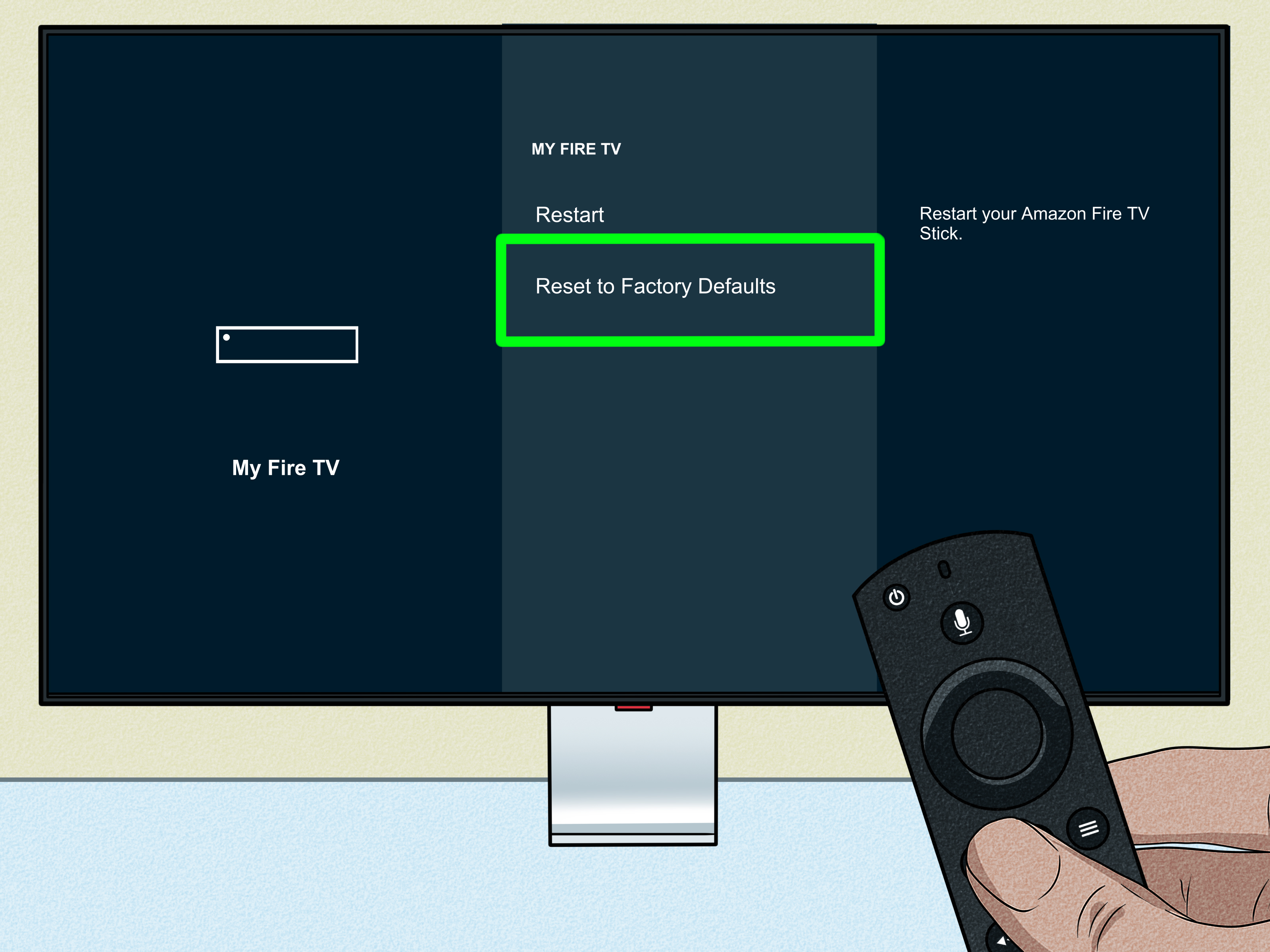
* If all else fails and your Firestick remains sluggish, a factory reset can return it to its original, out-of-the-box state. This will erase all apps, data, and settings, so you'll have to set it up again.
* Go to **Settings > My Fire TV > Reset to Factory Defaults**. Only do this if you've exhausted all other options.
* For a quick overview of immediate fixes, check out this guide:
Why Is Your Firestick So Slow? Top Causes & Instant Fixes.
Conclusion: Reclaim Your Smooth Streaming Experience
A slow, buffering Firestick doesn't have to be your reality. By systematically addressing common issues related to your internet connection, device software, and application management, you can significantly improve your Firestick's speed and overall performance. Remember to prioritize a strong Wi-Fi signal, keep your software updated, regularly clear app caches, and uninstall unused applications. Implementing these actionable steps will transform your frustratingly sluggish device into a responsive, enjoyable streaming hub. Now go forth and enjoy your favorite shows and movies without the dreaded lag!