Why Is Your Firestick So Slow? Top Causes & Instant Fixes
Is your Amazon Firestick constantly buffering, freezing, or taking an eternity to load your favorite shows and apps? If you're frequently asking yourself, "
why is my Firestick so slow?", you're certainly not alone. This common frustration can turn a relaxing streaming session into a test of patience. Fortunately, a lagging Firestick isn't usually a sign of a dying device; more often, it points to a few common culprits that are surprisingly easy to diagnose and fix.
From an overwhelmed internet connection to too many background apps hogging resources, understanding the root cause is the first step to restoring your Firestick to its optimal performance. In this comprehensive guide, we'll delve into the top reasons behind a sluggish Firestick and provide you with actionable, instant fixes to get you back to seamless streaming.
The Prime Suspect: Your Internet Connection
A robust and stable internet connection is the backbone of any smooth streaming experience. If your Firestick feels slow, the first place to investigate is often your Wi-Fi signal.
Weak Wi-Fi Signal & Distance
One of the most frequent reasons
why your Firestick is so slow is a weak or inconsistent Wi-Fi signal. Walls, furniture, and other electronic devices can interfere with your Wi-Fi, causing your Firestick to struggle to receive enough bandwidth.
*
Relocate Your Router: Try moving your Wi-Fi router closer to your Firestick. Even a few feet can make a significant difference.
*
Use an HDMI Extender: The Firestick itself can be a source of signal interference if it's plugged directly into the back of your TV, especially if the TV is flush against a wall. Use the included HDMI extender to position the Firestick away from the TV's chassis, allowing for better signal reception.
*
Prefer 5GHz (If Available): Most modern routers offer both 2.4GHz and 5GHz Wi-Fi bands. While 2.4GHz has a wider range, 5GHz offers faster speeds and less interference, making it ideal for streaming. Connect your Firestick to the 5GHz network if your device and router support it and proximity isn't an issue.
*
Run a Speed Test: Use a speed test app (available on your Firestick or a connected smartphone/laptop) to check your actual download speeds. For HD streaming, you generally need at least 5 Mbps, and for 4K, aim for 20-25 Mbps. If speeds are consistently low, contact your internet service provider (ISP).
Network Congestion & Interference
Your home network might be overcrowded. Multiple devices streaming, gaming, or downloading simultaneously can saturate your bandwidth, making your Firestick struggle.
*
Change Wi-Fi Channel: Wi-Fi networks operate on various channels. If your neighbors are on the same channel, it can cause interference. Consult your router's manual or ISP on how to change your Wi-Fi channel to a less congested one.
*
Consider an Ethernet Adapter: For the most stable and fastest connection, nothing beats a wired connection. Amazon sells official Ethernet adapters for Firestick devices, allowing you to bypass Wi-Fi entirely. This can dramatically improve performance, especially if you're frequently asking, "
why is my Firestick so slow on Wi-Fi?"
*
Upgrade Your Internet Plan: If you have a large household with many internet users and frequently experience a slow Firestick, it might be time to upgrade your internet plan for more bandwidth.
For deeper dives into optimizing your network specifically for buffering issues, check out our guide on
Buffering Firestick? Optimize Wi-Fi, Apps & Storage for Speed.
Software & System Overload: The Digital Clutter
Even with a perfect internet connection, a Firestick can still crawl if its internal system is bogged down by outdated software, too many background processes, or insufficient storage.
Outdated Firestick Software
Amazon regularly releases software updates for Firestick devices that include performance enhancements, bug fixes, and security patches. Running on old software can leave your device vulnerable to slowdowns.
*
Check for Updates:
1. Go to
Settings on your Firestick.
2. Select
My Fire TV.
3. Choose
About.
4. Select
Check for Updates.
5. Install any available updates and let your device reboot.
Too Many Background Processes
Just like a smartphone or computer, your Firestick can run multiple apps in the background, consuming valuable RAM and processing power even when you're not actively using them. This is a common reason
why your Firestick is so slow.
*
Force Stop Apps:
1. Go to
Settings.
2. Select
Applications.
3. Choose
Manage Installed Applications.
4. Scroll through the list and select any app you're not currently using.
5. Choose
Force stop. This will temporarily shut down the app and free up resources.
*
Disable Video Autoplay: Many streaming apps automatically play trailers or promos, which can consume bandwidth and resources.
1. Go to
Settings.
2. Select
Preferences.
3. Find and disable "Featured Content Autoplay" or similar options.
*
Turn Off Data Monitoring: While helpful for some, constantly monitoring data usage can add a minor load.
1. Go to
Settings.
2. Select
Preferences.
3. Choose
Privacy Settings.
4. Turn off options like "Device Usage Data" and "Collect App Usage Data."
Full Storage Space
Your Firestick needs available storage space to run smoothly, store app data, and manage temporary files. If your internal storage is nearly full, your device will inevitably slow down.
*
Uninstall Unused Apps: This is one of the most effective ways to free up significant space. We'll detail this further in the next section.
*
Clear App Cache and Data: Cache files can quickly accumulate and take up considerable space. While "Clear Cache" is usually safe, "Clear Data" will reset an app to its factory settings, requiring you to log in again. Use "Clear Cache" liberally.
1. Go to
Settings.
2. Select
Applications.
3. Choose
Manage Installed Applications.
4. Select an app.
5. Choose
Clear cache. Repeat for several apps.
*
Avoid Large Downloads: If you sideload apps or files, be mindful of their size and consider deleting them after use.
If you're dealing with a consistently lagging device, our comprehensive article,
Fix Your Slow Firestick: The Ultimate Guide to Speed & Performance, offers even more advanced strategies.
App Management: Keeping Your Firestick Lean
The more apps you install, especially those that run in the background or are poorly optimized, the more strain you put on your Firestick's limited resources.
Decluttering Unused Applications
Think of your Firestick like your phone – you probably have apps you rarely, if ever, open. These still consume storage space and can sometimes run processes in the background.
*
Uninstall Apps You Don't Use:
1. Go to
Settings.
2. Select
Applications.
3. Choose
Manage Installed Applications.
4. Scroll through the list and identify apps you no longer need.
5. Select the app and choose
Uninstall. Confirm when prompted. Repeat for all unnecessary apps. This is crucial for solving "
why is my Firestick so slow" issues.
Clearing App Cache and Data
Every app generates temporary files and data (cache) to speed up loading times. Over time, this cache can balloon, consuming valuable storage and potentially becoming corrupted, leading to a slow Firestick.
*
Regular Cache Clearing: Make it a habit to clear the cache for your most frequently used streaming apps (Netflix, Prime Video, Hulu, etc.) every few weeks.
1. Go to
Settings.
2. Select
Applications.
3. Choose
Manage Installed Applications.
4. Select the app (e.g., Netflix).
5. Choose
Clear cache.
*
Note on "Clear Data": While "Clear Data" will also free up space, it will effectively factory reset the app, requiring you to log in again and reconfigure any personal settings. Use this only if clearing cache doesn't help or if an app is behaving erratically.
Hardware & Environmental Factors
Sometimes, the answer to "why is my Firestick so slow?" lies not in software or network settings, but in the physical environment and hardware usage.
Overheating
Firestick devices generate heat, especially during extended use or when processing high-resolution content. If the device gets too hot, its performance can throttle to prevent damage.
*
Ensure Good Ventilation: Avoid placing your Firestick in enclosed spaces like behind a TV mounted flush against a wall, or inside a cabinet.
*
Use an HDMI Extender: As mentioned earlier, using the HDMI extender moves the Firestick away from the TV's heat, improving airflow around the device.
Power Supply Issues
Your Firestick requires a stable power supply to function optimally. Underpowering it can lead to instability and slow performance.
*
Use the Original Power Adapter: Always use the power adapter and cable that came with your Firestick. These are designed to provide the correct voltage and amperage.
*
Avoid TV USB Ports: While convenient, many TV USB ports don't provide sufficient power for the Firestick, especially newer, more demanding models. Always plug the Firestick into a wall outlet using its dedicated adapter.
The "Restart" Button & Factory Reset
Sometimes, a simple reboot is all it takes to clear temporary glitches and refresh your device's memory. A factory reset is a last resort.
*
Restart Your Firestick:
1. Go to
Settings.
2. Select
My Fire TV.
3. Choose
Restart.
4. Alternatively, simply unplug the Firestick from its power source for 30 seconds and then plug it back in.
*
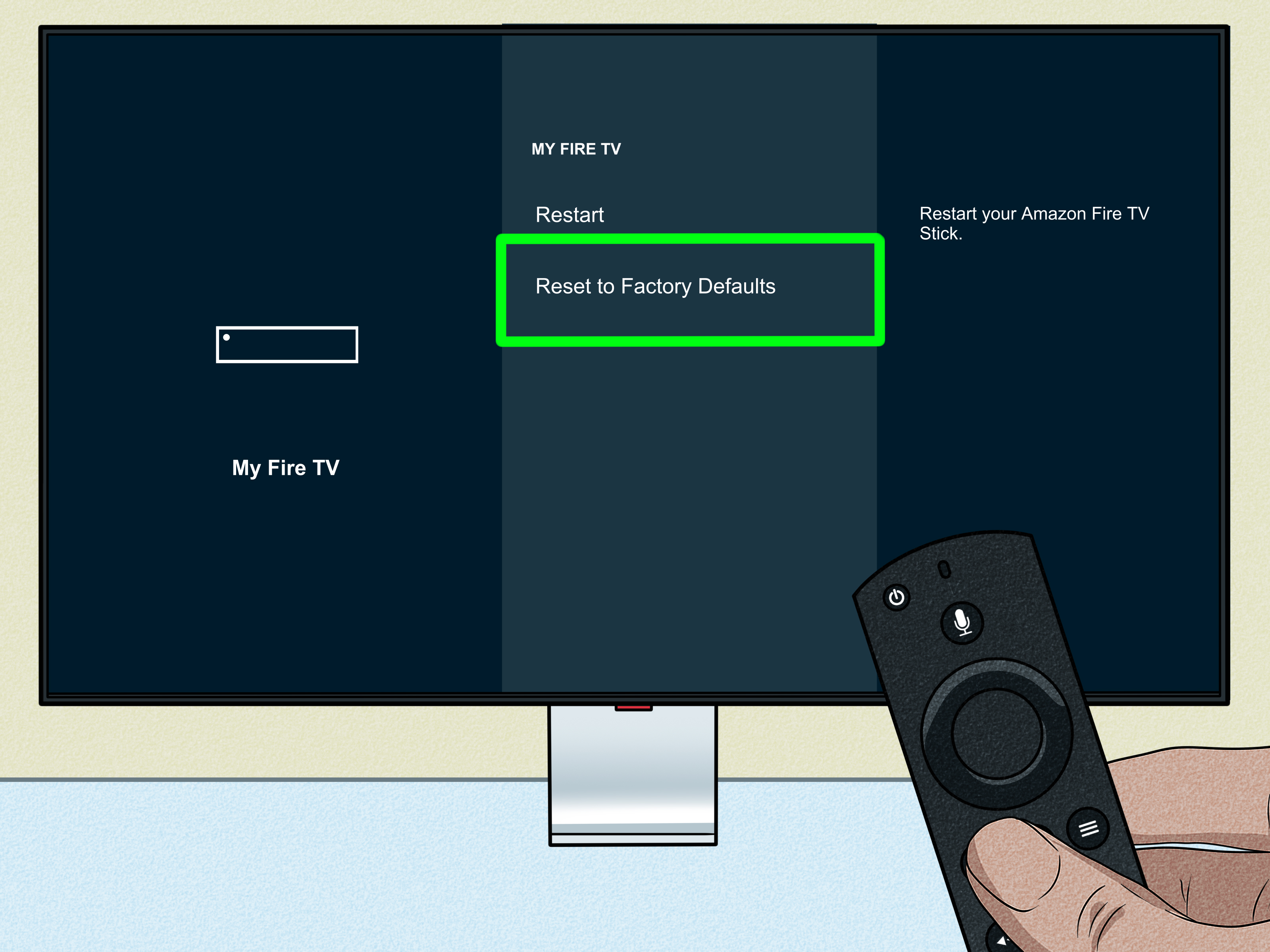
Factory Reset (Last Resort): If all else fails and your Firestick remains unbearably slow, a factory reset can often resolve deep-seated issues by restoring the device to its out-of-the-box state.
1. Go to
Settings.
2. Select
My Fire TV.
3. Choose
Reset to Factory Defaults.
*
Caution: This will erase all your apps, data, and settings. You will need to set up your Firestick from scratch and reinstall your apps.
Conclusion
A slow Firestick can be incredibly frustrating, but as you've seen, the solution to "
why is my Firestick so slow?" is often a straightforward fix. By systematically addressing potential issues related to your internet connection, software, app management, and even environmental factors, you can significantly improve your streaming experience. Regular maintenance, such as checking for updates, clearing cache, and decluttering apps, will keep your Firestick running smoothly for years to come. Don't let a lagging device ruin your entertainment – take control and enjoy seamless streaming once again!